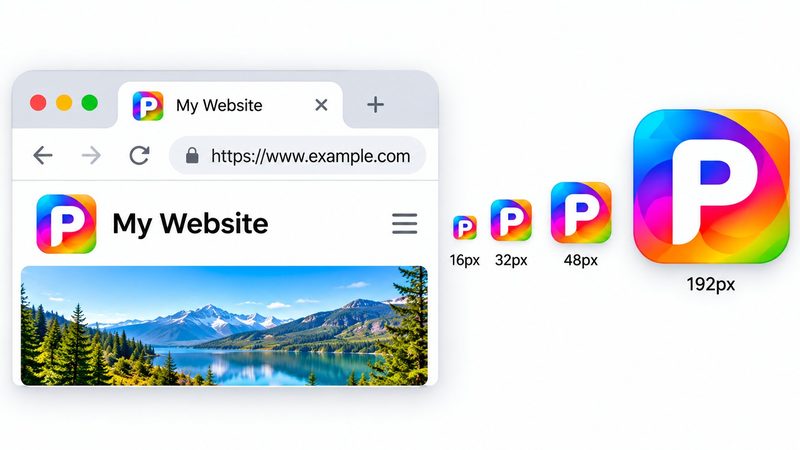
A favicon is the tiny icon in the browser tab next to your site's name — 16 pixels wide, and the first thing people see when they have twenty tabs open. A site without one looks unfinished, and a site with a sharp one looks professional. PixKitTools' Favicon Generator makes the full set from your logo, free in your browser.
Make a favicon in 4 steps
- Open the Favicon Generator.
- Upload your logo or a square photo — a simple, bold image works best.
- Generate the set: 16, 32, 48, 180, 192 and 512 px, plus a site.webmanifest and the HTML snippet.
- Download everything as a ZIP. No signup, no watermark, and your logo is never uploaded.
Which sizes do you need?
- 16 × 16 and 32 × 32 — browser tabs and bookmarks. This is the favicon itself.
- 48 × 48 — the classic favicon.ico size, for older browsers.
- 180 × 180 — the Apple touch icon, shown when someone saves your site to their iPhone home screen.
- 192 × 192 and 512 × 512 — Android and Progressive Web App icons, for home screens and app installs.
Install it on your site
Upload the files to your site's root folder, then paste the HTML snippet the tool gives you into the <head> of your pages. That is all — browsers pick the right size automatically. If the new icon doesn't show up right away, hard-refresh the page (Ctrl + F5) or clear the tab: browsers cache favicons aggressively.
Tips for a favicon that reads well
- Keep it simple. At 16 pixels, a detailed logo becomes a smudge — one letter, one shape, one bold colour works best.
- Use a square image with the subject filling the frame. Leave no wide margins.
- Test it: open your site in a tab with ten others and see if your icon still stands out.
Is it really free?
Yes. All 22 PixKitTools tools are free with no signup, no watermark and no daily limit, and everything runs in your browser.