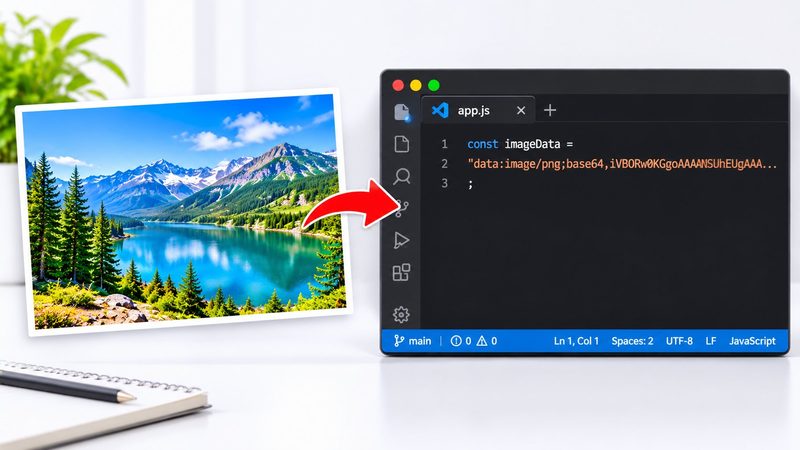
Web developers hit the same problem constantly: a small icon or logo that needs one extra file and one extra request to load. Base64 solves it by turning the image itself into text — a data URI you paste straight into HTML or CSS. PixKitTools' Image to Base64 encodes and decodes images in your browser, free.
Encode in 3 steps
- Open Image to Base64.
- Upload any image — JPG, PNG, WebP, GIF or SVG.
- Copy the result: the raw Base64 string, the full data URI, or a ready-to-paste
<img>snippet. One click copies it. No signup, and your image is never uploaded.
When to use Base64 — and when not to
- Use it for small icons, logos and tiny graphics — under about 10–20 KB. One file fewer, one request fewer, and the page loads faster.
- Don't use it for large photos. Base64 makes every file about 33% bigger (3 bytes become 4 characters), and an inlined image can't be cached separately from the page around it. A 200 KB photo becomes roughly 270 KB of text.
- Emails and JSON are classic uses: images that travel inside a message or a data payload, where there is no separate file to link to.
Decode Base64 back to an image
The same tool works in reverse: paste a Base64 string or a data URI and it shows you the image, with the format detected automatically. Useful when you inherit someone else's code and want to see what an embedded image actually is.
Is it really free?
Yes. All 22 PixKitTools tools are free with no signup, no watermark and no daily limit, and everything runs in your browser.